Tracking many websites at once: Google Analytics for agencies and owners of several sites
To run Google Analytics for several websites, give each client or business its own account, put one property in it for every site, and add people at the level they need. That keeps data separate and access tidy. In standard Google Analytics 4, each site's property is a separate report, so there's no single glance across all of them, and this guide covers that too.
TL;DR
- Give each client or business its own Google Analytics account, with one property per website inside it.
- Add people at the account level to see every site in it, or on one property to see only that site.
- Standard Google Analytics shows one property at a time. One live screen for every site is the part Stickybeak does.
Stickybeak puts every site you own on one live wall, with revenue tied to the channel it came from. It is in early access. Free up to 10k pageviews a month, then $20 a month for Solo.
Get early accessThe short answer
Structure: one Google Analytics account per client (or per business you own), one property per website inside it. Keep unrelated sites in separate properties.
Access: add your team and the client as users on the account, so they see every property in it, or on a single property if they should see only that one. You need the Administrator role to add people.
Routine: name things the same way every time, mark the same conversions on every site, keep your own traffic out, and audit each account on a schedule.
The gap: separate properties in standard Google Analytics are separate reports. (Google's paid Analytics 360 offers roll-up properties that combine several.) If you want a card per site on one live screen, showing who is on each right now, that's the part Stickybeak does.
Accounts, properties and who owns what
Google Analytics has two levels you decide about: the account and the property inside it. A property is where one website's data (or one app's) is collected and reported. An account is the folder that holds properties and decides who can see them. You can add a user at either level. Google's help page on adding users says an account-level user gets access to every property in the account, with the same permissions, and a property-level user gets that property only (Google Analytics Help, Add, edit, and delete users, read 16 October 2026).
That gives you three ways to lay out a set of sites. Which is right depends mostly on who owns the data.
| Layout | Best when | Watch for |
|---|---|---|
| One account per client, a property per site | You work for other businesses. The client owns the account, you're added as a user, and handing over is just removing you. | More accounts to switch between. Name them consistently so you can find them. |
| One account of yours, a property per client site | The sites are all yours: your own shops, tools and projects. | If a site is later sold or handed over, you have to move or recreate it. Don't do this for clients' sites if they might leave. |
| One property for several sites | Sites that serve one user journey, such as a shop and its checkout on another domain. Google's account structure page says to use one web data stream for multiple domains in that case, joined up with cross-domain measurement. Not for unrelated clients. | For unrelated sites every report is a mix, which hides which one is doing what. |
If you're an agency, the first row is the one that keeps you out of trouble. Ask the client to create the account, or to make one of their own people an Administrator, so you never hold the only keys to their data.
A setup checklist you can repeat on every site
Use this checklist for each site.
- Name things in a pattern. Account: the business name. Property: the site's domain, not "Website" or "New". When you have thirty of them in a drop-down, you'll be glad.
- One tag, one place. Decide whether the tag goes on the page directly or through Google Tag Manager, and do it the same way on every site. If you're unsure, GTM vs Google Analytics explains what each does and what the extra container layer costs.
- Agree what counts as a conversion. Write down the one or two actions that matter for this client (a purchase, a form, a call) and mark those as key events. The same words on every site make comparisons possible. The conversion rate calculator turns the counts into a rate.
- Keep your own traffic out. Your team and the client's staff will browse the site constantly. Exclude them, or the numbers flatter the site.
- Tag campaign links. Use one UTM pattern across clients so email, social and ads land in the right channel. The UTM builder keeps the spelling consistent, and UTM parameters explained shows the pattern.
- Check the install. Visit the site yourself and look for the visit in the real-time report. Real-time website analytics explains how to read it.
- Set a review date. Once a quarter, open each account and check that the tag still fires, the users are the right people and the conversions still match what the client sells. Sites change and tags get lost in redesigns.
Keep the checklist in one shared document and link each client's account from it. It's also the thing a new hire needs on their first day.
Where it gets heavy at ten or twenty sites
The set-up work is a one-off. The part that never goes away is the looking. If you run twenty sites, you open twenty properties, one after another, to answer a simple question like "is anything on fire today?" Reporting dashboards that pull several properties into one view help with the weekly report, but they're a report you build and check.
That's where Stickybeak came from. Mitch, who makes it, runs 21 websites, and his note on the home page puts it plainly: "Checking on them meant 21 tabs."
Client-reporting platforms are a different category. AgencyAnalytics, for one, titles its home page "Client reporting and performance insights for marketing agencies" (read 23 October 2026). Stickybeak isn't a reporting platform.
One screen for every site: the Stickybeak wall
Stickybeak is live analytics for every site you own, in early access. Each site gets a card on one screen, the wall: people on now, the last 30 minutes in per-minute bars, the top countries, and today's total. On Solo and up, orders pop up as they land, with the channel behind them.
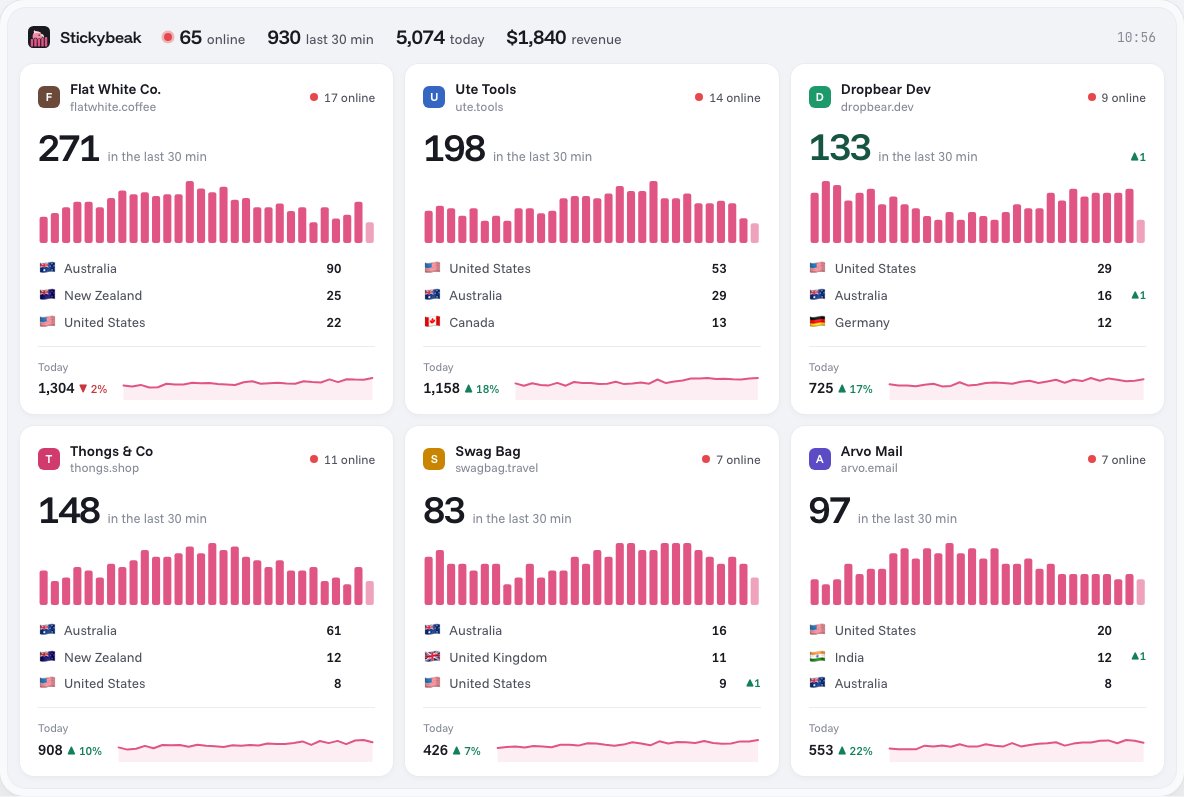
How several sites and clients fit in
- One site per domain. Add each domain in Settings and put its own snippet on it. Each gets its own card and its own site page, and the top bar adds them all up. Subdomains stay part of their parent site, and
www.is ignored. Subdomains and multiple sites has the detail. - Workspaces for clients. A workspace owns its sites, wall and API tokens. The docs suggest separate workspaces for separate teams or clients. Invite people as admins (who manage sites and settings) or members (who can look, not change). See workspaces and teams. Solo covers 2 people; Team and Agency cover everyone (pricing).
- A wall on a spare screen. Press F to fit every site on one screen. It works on a TV or a kiosk browser, so the office can have the wall up all day.
- Notes on the chart. Annotations can be added by hand or by a deploy script through the API (Solo and up), so a change on a client's site has a reason beside it on the chart.
What it doesn't do
- It isn't a reporting tool. Its docs and pricing page don't list scheduled client reports. Share links for clients and client dashboards on your own domain are marked "On the way" on the pricing page. Keep your reporting tool for the monthly PDF.
- A domain belongs to one workspace. A domain can be added only once across Stickybeak, and different domains are always separate sites, each with its own card.
- It doesn't replace Google Analytics on day one. Run it beside your current tool first. Check that the numbers behave the way you expect before you rely on it for a client.
- It's in early access. You join the list and hear when there's a spot. Pricing is by pageviews across all your sites, never by the number of sites: free up to 10k a month, then Solo $20, Team $200 and Agency $2,000 a month, with 30 days free and no card.
Setup is one script tag, 4 KB, and the dashboard checks the install: it looks for the tag on your homepage and for the first visitor. The quick start walks through it, and verify covers the checks.
Using both
You can use both. Google Analytics holds the deep, historical reports and is the tool clients may already expect. A live wall covers the "what's happening right now across everything" question. If you're deciding whether to keep Google Analytics on every site, Google Analytics alternatives compares a few tools for people who run more than one site, and Google Analytics pricing covers what the free version includes. To see roughly what a site is getting before you set anything up, try the website traffic checker, which is free.
Questions
How should an agency set up Google Analytics for clients?
Give each client their own Google Analytics account, put one property in it for each website, and add your team to the account. Then the client owns their data, and you can be removed without losing it.
Can one Google Analytics account track several websites?
It can hold several properties, one per website, and that is the usual way to do it for unrelated sites. Mixing them into one property makes every report a blend. Related domains serving one user journey can share a property.
How do I give a client or colleague access?
In Google Analytics you can add a user at the account level, which gives access to every property in the account, or at the property level, which gives access to that property only. You need the Administrator role to add people.
How do I see all my websites in one place?
Standard Google Analytics shows one property at a time (Analytics 360 also has roll-up properties), so a common answer is a reporting dashboard built from several. Stickybeak instead puts every site in a workspace on one live screen, the wall, with a card for each site.
Should every client have a separate workspace in Stickybeak?
Its docs suggest separate workspaces for separate teams or clients. A workspace owns its sites, wall and API tokens, and people can be invited as admins or read-only members.
Is Stickybeak a client reporting tool?
No. It is a live view of every site you own, with revenue by channel. It is in early access, scheduled client reports aren't listed, and client dashboards and share links are marked on the way, so keep your reporting tool for client reports.