Get started
Verify your install
To check if analytics is working, use Stickybeak's live checks first, then browser developer tools when a check does not pass.
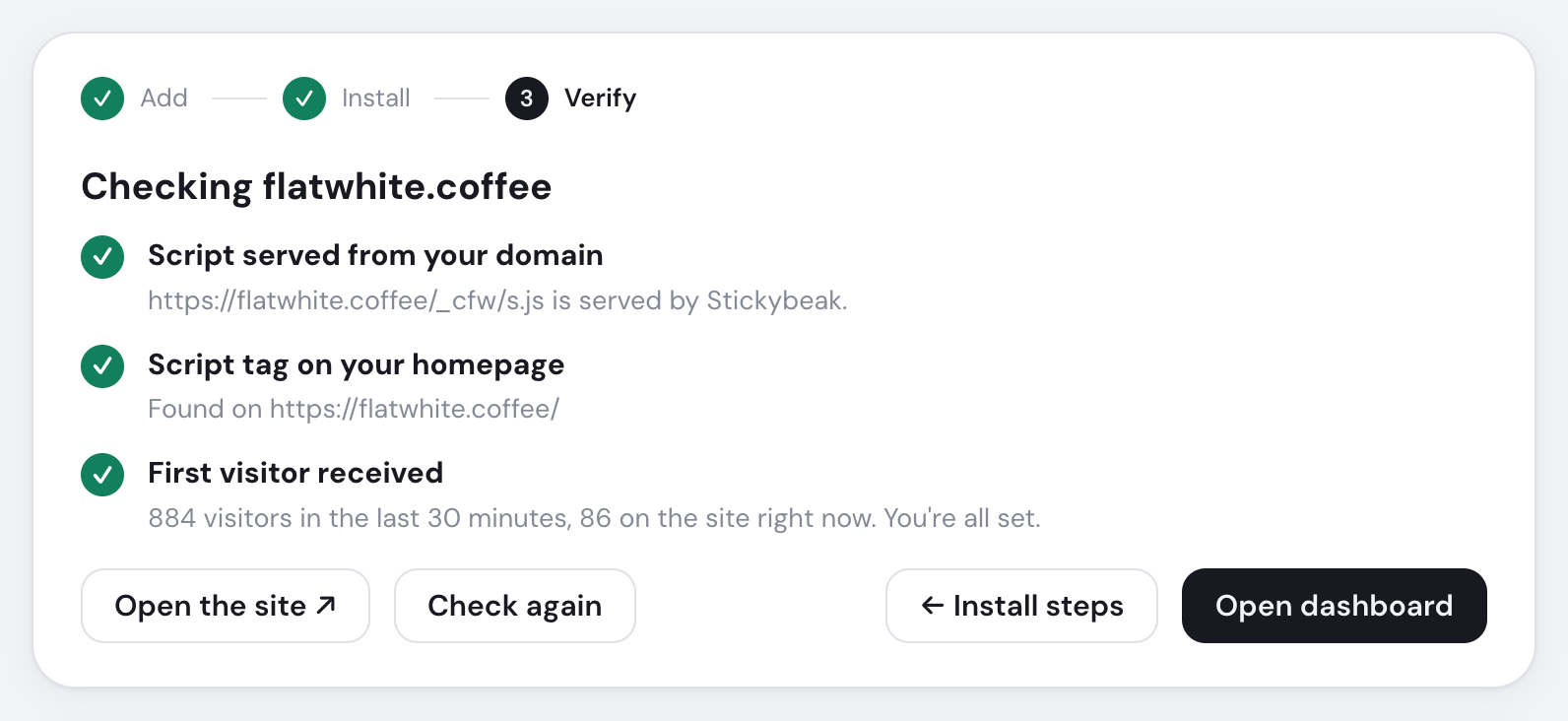
- Verification step is active
- Site domain currently being checked
- First-party tracker route is working
- Homepage contains the tracker tag
- Live visitor data has arrived
Verify analytics install
Open Settings, choose Install & verify for the site, then click I've added it →. Open the published site and click Check again.
| Check | If it fails |
|---|---|
| Script served from your domain | Your first-party /_cfw/s.js route is unavailable. Use the hosted script meanwhile. |
| Script tag on your homepage | Publish the tag, correct data-domain, or copy this site's ID. Client-rendered tags may not appear here. |
| First visitor received | Test the live domain in another browser or on your phone. Localhost, iframes and opted-out browsers are skipped. |
Check in developer tools
On the live site, open Developer tools → Network, filter for _cfw, and reload.
| You see | Meaning |
|---|---|
No s.js | The tag is missing or cached HTML is being served. |
s.js blocked | Check your ad blocker or Content Security Policy. |
s.js 200, no i | The visit was skipped, or a required attribute is missing. |
POST i 202 | The pageview was accepted. |
POST i 403 | The site ID is unknown or the page is outside its domain. |
POST i 400 | The request is malformed. |
In the Console, window.__stickybeak is true when this page is being tracked. Check localStorage.getItem("stickybeak:ignore") for a browser exclusion.
Debug mode
data-debug="true" lets the script run inside an iframe; it does not log to the console. For broader fixes, see Troubleshooting.